
AI Failure Diagnosis and Repair
Ask why a run failed, review an AI-proposed fix as a versioned diff, and let triage group recurring failures into proposals.
These images are illustrations of the concept, not screenshots of the actual product.
Overview
When a FluidGrids run fails, the evidence is already there: the failing node, the typed error, the logs and the version that ran. What takes time is reading it, recognizing the cause and knowing the fix. This concept illustrates how AI in FluidGrids is designed to do that reading, from answering a single question about one failed run to looking across a week of failures and preparing repairs for a person to approve.
The problem it addresses is the gap between a red status pill and a working workflow. An operator who did not build a workflow may not know that an authentication error on a messaging step means a connection has expired, and a team running many automations can watch the same fault recur in several workflows before anyone connects the dots. The design keeps a person in control throughout: diagnoses are explained, changes are shown as diffs, and nothing is applied without confirmation.
In the first illustration, the FluidGrids Assistant sits beside a failed run's summary. Asked why the workflow failed, it names the failing node and the expired credential, gives a two-step fix, and offers buttons to open the connection or retry the node, along with suggested follow-ups such as adding a retry branch or explaining the error. The second shows a proposed repair for a failed run: a diff that swaps an expired connection for a valid one, with a note that applying it creates a new version while the previous version stays restorable. The third, an Automation health page with an autonomous triage switch, counts failed runs, failure clusters, proposals and failures suppressed as transient, groups the clusters by workflow, failing node and cause with proposals ready for review, and adds a weekly digest.
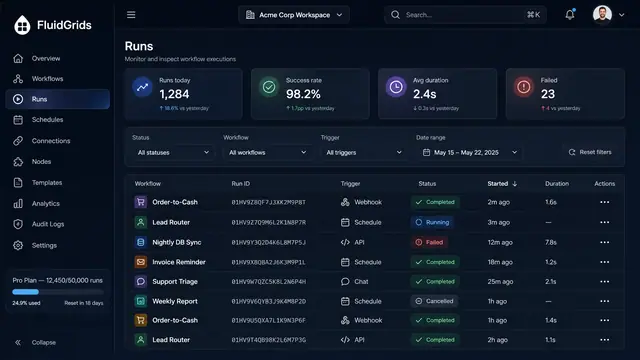
The concept builds directly on run inspection and on workflow versioning, since every repair lands as a new version with its history intact. It draws on connections and credentials, the source of several failures shown here, and complements the analytics views that measure failure rates over time.
What this concept shows
- An in-context assistant panel that answers why a workflow failed for the run on screen
- Plain-language diagnosis naming the failing node, the error and its likely cause
- One-click actions to open the affected connection or retry the failed node
- Suggested follow-ups such as adding a retry branch or explaining the error
- Proposed repairs shown as a diff and applied as a new workflow version, with the previous version restorable
- An autonomous triage switch with counts of failed runs, failure clusters, proposals and transient failures
- Failure clusters grouped by workflow, failing node and cause, each with a proposal status
- A weekly digest of expiring connections, idle workflows, run volume and autonomous invocations
How it works
These steps illustrate how the concept fits together — not a walkthrough of the product's current interface.
- Open a failed run and ask the assistant why the workflow failed.
- Read the diagnosis and suggested fix, then open the affected connection or retry the failed node.
- For a failure that needs a workflow change, review the proposed repair and its diff.
- Apply the repair as a new version, or dismiss it, knowing the previous version stays restorable.
- Turn on autonomous triage and review the Automation health page for failure clusters and ready proposals across workflows.
- Use the weekly digest to catch expiring connections and idle workflows before they cause failures.
Who it's for
- Operations teams running automations they did not build
- Workflow owners responsible for keeping automations healthy
- Platform and on-call engineers triaging failures across many workflows
- Agencies and consultants operating client workflows at scale
Illustrations
3 illustrations of this concept. Select one to view it full size.
Assistant Explaining Why a Run Failed
The illustration splits the screen between a failed run and the FluidGrids Assistant. On the left, the run page offers Summary, Logs, Input, Output and Metadata tabs and an Export button. A Run overview shows the failed status, five nodes, one failure, the duration and who started the run, and a Workflow execution list shows a schedule trigger, a spreadsheet read and an AI enrichment step completed, a Slack notification flagged with an authentication badge and an invalid-token message, and a final email step skipped. A footer reports one failed node next to View full logs. On the right, a user asks why the workflow failed; the assistant names the failing Slack step and the expired credential and lists two steps to fix it. Open connection and Retry node buttons follow, then suggested actions to add a retry branch or explain the error, a message box and a note that AI responses may be inaccurate.
Proposed Repair Applied as a New Version
This screen, marked with a Preview badge, envisions AI repair proposals for failed runs. A breadcrumb header identifies a failed run of a sample payment-enrichment workflow, its version and failure time, with Retry node and Resume run buttons. The Nodes card lists a webhook trigger and a CRM contact update as successful, and a Slack message step as failed with an authentication error about an expired connection token. Beside it, a Proposed repair card, tagged Proposed, names the failing node and its cause, then shows a diff that removes the expired connection and adds a valid replacement. The card explains that applying the change creates a new version while the current version stays restorable, and offers a button to apply it as the next version, Dismiss and View version history, with a reminder that nothing is applied until the user confirms.
Automation Health With Autonomous Triage
The Automation health page, also marked with a Preview badge, sits under Runs in the workspace navigation, as its breadcrumb shows. The header offers a date-range picker and an Autonomous triage switch shown turned on. Four tiles count failed runs, failure clusters, proposals and failures suppressed as transient for a sample week. A Failure clusters table groups failures by workflow, failing node and cause, such as an expired connection, a connector contract change or a bad node configuration, with the number of runs affected, when each cluster first appeared and a Ready badge in the Proposal column. A Weekly digest card lists connections expiring within 14 days, active workflows idle for 30 days or more, runs this week and scheduled autonomous invocations. A footnote states that these are proposals only and that no active workflow is changed without confirmation.
Topics
- AI workflow debugging
- why did my workflow fail
- AI root cause analysis for automations
- AI-suggested workflow fixes
- automated workflow repair proposals
- failed run triage
- failure clustering
- expired credential detection
- AI assistant for automation
- workflow health digest
Related concepts
Run History, Inspection and Recovery
Follow every workflow execution node by node, then retry, resume or approve runs from a desktop or a phone.
5 illustrations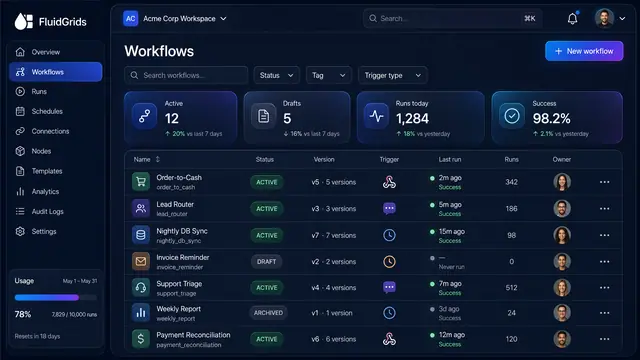
Workflow Library, Versions and Publishing
Track every workflow's status and version, compare and restore past versions, and publish with a pre-flight check that arms triggers.
3 illustrations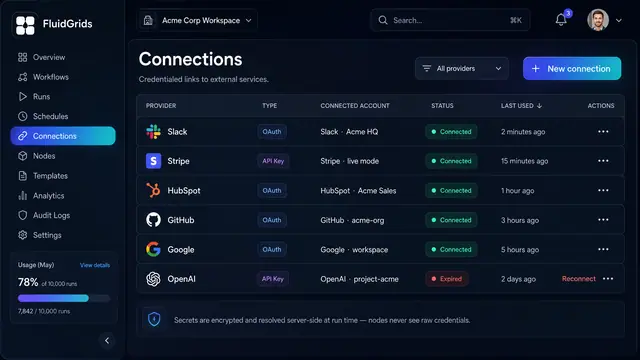
Connections and Credentials
Authorize external services once, reuse them across every workflow, and keep the secrets out of the canvas.
2 illustrations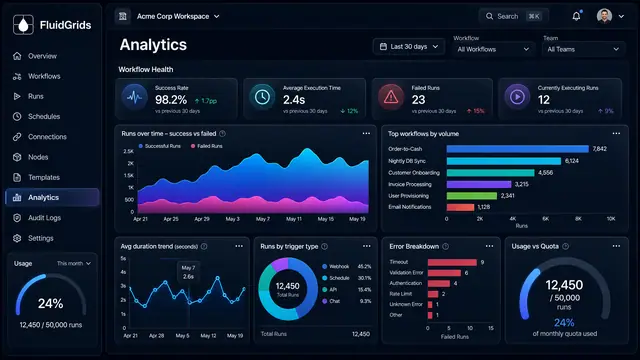
Analytics and Operational Health
Measure success rates, durations, error types and live worker health across every workflow in one place.
3 illustrations
Part of an industry solution
This concept appears in a cross-product solution on burdenoff.com — see how it works alongside other Burdenoff products to solve a problem in that industry.