
Workflow Library, Versions and Publishing
Track every workflow's status and version, compare and restore past versions, and publish with a pre-flight check that arms triggers.
These images are illustrations of the concept, not screenshots of the actual product.
Overview
This concept follows a workflow through its lifecycle after it has been drawn. It pairs a library of every workflow in a workspace with a version history that compares and restores past versions, and a publish-and-activate step that checks a workflow before it goes live. Together they reflect the idea that every save is a version and that what runs in production is always a specific, known version.
Once automations multiply, teams need quick answers to simple questions: which workflows are live, which are still drafts, what changed in the last edit, and how to get back to the version that worked yesterday. Editing a live automation in place, with no record of what changed, turns every fix into a risk. The design gives each workflow a draft, active or deprecated status, a numbered version trail with authors and notes, and a deliberate publish action that states which triggers it will arm.
The Workflows list opens with summary cards for active workflows, drafts, runs today and success rate, each with a trend, plus filters for status, tag and trigger type. Its table shows each workflow's name and key, a status badge, the current version and version count, a trigger icon for webhook, chat or schedule, the last run and its result, total runs, the owner and a row menu. The version history for a sample order-to-cash workflow shows the draft, active and deprecated stages, then a visual diff between two versions that marks one node as added and another as modified, with a switch to a JSON view. A Version Trail panel lists each version with its author, time and change note, and a Restore this version button. The Publish & Activate dialog opens over the canvas with a pre-flight checklist confirming that validation passed, that no nodes are left dangling, and which schedule and webhook triggers will be armed, followed by release notes and an Activate immediately switch.
The library connects to the rest of FluidGrids. New workflows start in the visual builder or from a template, each run belongs to the version that executed it, and repairs proposed by the AI assistant are designed to arrive as new versions that follow the same compare, publish and restore path.
What this concept shows
- Summary cards for active workflows, drafts, runs today and success rate, with trend indicators
- A searchable workflow table filterable by status, tag and trigger type
- Per-workflow status, current version, version count, trigger type, last run, run count and owner
- A lifecycle strip showing draft, active and deprecated stages
- A visual version diff with added, modified and removed markers, plus a JSON view
- A version trail with author, time and change note for every version, and one-click restore
- A publish dialog whose pre-flight checklist confirms validation and lists the triggers to be armed
- Release notes and an Activate immediately switch that makes the new version live
How it works
These steps illustrate how the concept fits together — not a walkthrough of the product's current interface.
- Open Workflows to review status, versions, triggers and last runs, filtering by status, tag or trigger type.
- Open a workflow's version history to see where it sits in the draft, active and deprecated lifecycle.
- Compare two versions in the graph or JSON diff to see which nodes were added, modified or removed.
- Restore an earlier version from the version trail if the latest change needs to be rolled back.
- From the canvas, open Publish & Activate and confirm the pre-flight checklist and the triggers it will arm.
- Add release notes and publish, choosing whether to activate the new version immediately.
Who it's for
- Automation and operations leads
- Workflow builders and developers
- Team leads reviewing changes before release
- Workspace administrators overseeing live automations
Illustrations
3 illustrations of this concept. Select one to view it full size.
Workflow Library
This illustration shows the Workflows page with a New workflow button, a search box and filter menus for Status, Tag and Trigger type. Four summary cards report active workflows, drafts, runs today and success rate, each with a small trend compared with an earlier period (all sample figures). The table beneath lists workflows such as order-to-cash, lead routing, a nightly database sync, invoice reminders, support triage, a weekly report and payment reconciliation. Columns show the display name with its machine key, a status badge of Active, Draft or Archived, the current version and number of versions, an icon for the trigger type (webhook, chat or schedule), the last run time with its result, the total run count, the owner's avatar and a row actions menu. A draft that has never run shows that state plainly. The design demonstrates a single place to judge which automations are live and healthy.
Version History with Visual Diff
Here the concept presents version history for a sample order-to-cash workflow, reached through breadcrumbs from the Workflows list. A lifecycle strip shows three stages: draft for design and build, active for running in production, and deprecated for not in use, with active highlighted. The Version Diff panel compares two versions and summarizes one node added, none removed and one modified. A graph view, with zoom and full-screen controls and a JSON view toggle, draws the workflow with a newly added datasink node and a modified Slack step whose channel changed, explained by an added, modified and removed legend. A footer states which versions are being compared and offers Restore this version. On the right, the Version Trail lists five versions, newest first, each with author, time, a short change note and icon actions, and the selected version shows its own restore button.
Publish and Activate with Pre-Flight Checks
This screen shows the Publish & Activate dialog for version five of a sample order-to-cash workflow, opened over its canvas. Behind it, the workflow header shows a version selector, an Active badge and Test run, Versions and Edit actions, while the canvas holds schedule and webhook triggers feeding validation, invoicing, ERP, customer notification, analytics and datasink nodes, with node and connection counts in the footer. The dialog's pre-flight checklist confirms that validation passed, that there are no dangling nodes, and that two triggers will be armed: one cron schedule and one webhook. A release notes field records what changed. An Activate immediately switch is turned on, with a note that activating arms scheduled triggers and makes this version the live one. Cancel and Publish & Activate buttons close the dialog. The design demonstrates a deliberate, checked release rather than silent edits to a live automation.
Topics
- workflow version history
- workflow version control
- compare workflow versions
- restore a previous workflow version
- publish and activate a workflow
- workflow lifecycle
- workflow release notes
- automation change management
- workflow list with status
- roll back an automation
Related concepts
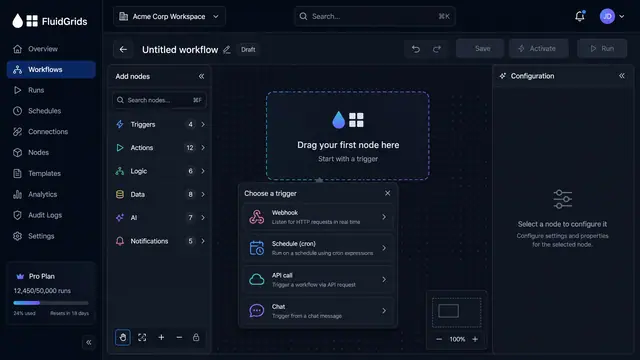
Visual Workflow Builder
Draw an automation on a canvas - trigger, branches, connectors and merges - then watch a test run light the same picture up step by step.
4 illustrations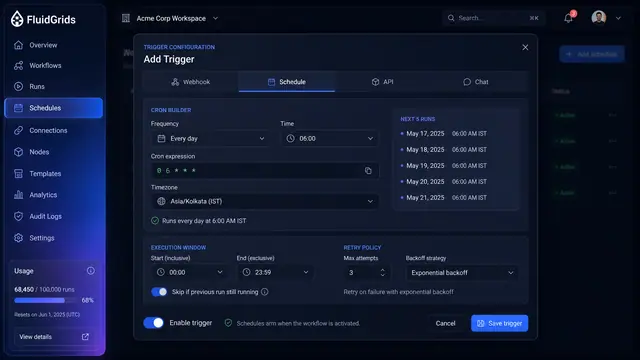
Triggers, Schedules and Webhooks
Decide what starts a workflow — a cron schedule, an incoming request, an API call or a chat message — and keep every trigger under control.
3 illustrations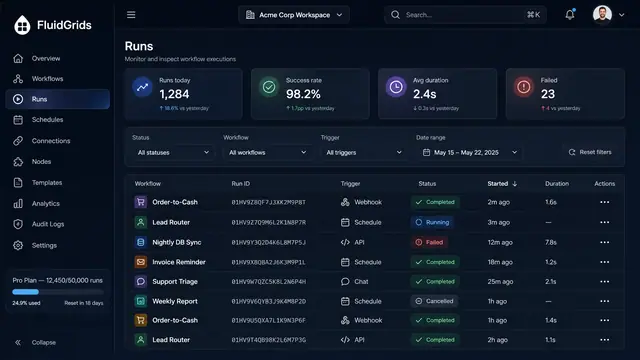
Run History, Inspection and Recovery
Follow every workflow execution node by node, then retry, resume or approve runs from a desktop or a phone.
5 illustrations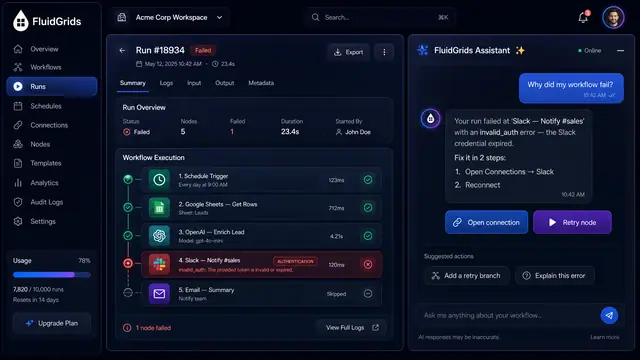
AI Failure Diagnosis and Repair
Ask why a run failed, review an AI-proposed fix as a versioned diff, and let triage group recurring failures into proposals.
3 illustrations