
Visual Workflow Builder
Draw an automation on a canvas - trigger, branches, connectors and merges - then watch a test run light the same picture up step by step.
These images are illustrations of the concept, not screenshots of the actual product.
Overview
Most automations start life as a diagram on a whiteboard and end life as code nobody wants to touch. The gap between the two is where processes rot: the picture stops matching what runs, and the only people who can answer what happens when an order is over a threshold are the people who wrote the script. This concept closes that gap by making the canvas itself the thing that executes.
The sequence begins with a new, empty workflow. The design shows an untitled draft, a node panel on the left grouping the palette into triggers, actions, logic, data, AI and notification categories with counts, and a dashed drop zone in the middle inviting the first node. Because a workflow has to start somewhere, a trigger chooser is already open with four ways in - an inbound webhook, a cron schedule, an API call and a chat message. The configuration panel on the right sits in its empty state until something is selected.
The second screen shows a finished order-handling flow. A webhook trigger feeds a condition on order total; one branch notifies a sales channel and creates a deal in the CRM, the other creates an invoice and emails a receipt, and both converge on a node that pushes metrics onward. The header carries a version selector reading as a draft revision, save and validate actions, an activation toggle and a run control. A log drawer along the bottom streams timestamped entries with levels, node names and durations.
The third screen concentrates on flow control itself: a switch fanning out by region into parallel branches, a loop over items on one of them, and a merge that combines the branches before filtering, aggregating and logging the result. The fourth screen runs the order flow as a test - completed nodes carry success checks, the current node is highlighted as running, downstream nodes read as pending, a step counter and progress bar track position, and the execution log streams underneath.
This is the surface the rest of the product orbits. Node configuration, versioning and publishing, run history and AI authoring all attach to the same canvas.
What this concept shows
- An empty-canvas starting state with a dashed drop zone and a trigger chooser offering webhook, schedule, API call and chat starts
- A categorized node panel with searchable groups for triggers, actions, logic, data, AI and notifications, each showing how many nodes it holds
- A branching graph where a condition node splits into labeled yes and no paths that later reconverge
- Header controls for saving, validating, activating and running, with a version selector showing the draft revision
- A palette of internal flow-control blocks - if, switch, loop, merge, wait, set, filter, aggregate, transform and code
- A fan-out and merge pattern with per-branch labels and a combine mode on the merge node
- A test run that marks each node as success, running or pending while a progress bar counts completed steps
- A live execution log with level filtering, auto-scroll, pause, export and millisecond timestamps
How it works
These steps illustrate how the concept fits together — not a walkthrough of the product's current interface.
- Create a workflow and pick how it starts from the trigger chooser on the empty canvas.
- Drag nodes from the categorized palette onto the canvas and wire them into a sequence.
- Add a condition to split the flow, then build out each branch with the connectors it needs.
- Use flow-control blocks to fan out across cases, loop over items and merge the branches back together.
- Filter and aggregate the merged result before handing it to a final action.
- Run the workflow as a test and watch node states advance while the execution log streams underneath.
- Validate, save and activate once the run behaves the way the picture says it should.
Who it's for
- Operations and automation leads replacing manual glue work with governed flows
- Engineers who want a visual contract for what actually executes
- Solution consultants building process automations for client teams
- Process owners in finance, support and IT who review automations they do not write
Illustrations
4 illustrations of this concept. Select one to view it full size.
New Workflow and Trigger Chooser
This illustration shows a brand-new workflow. The header carries an editable untitled name, a draft badge, undo and redo, and save, activate and run controls that read as inactive until there is something to save. On the left, an add-nodes panel offers a node search and collapsible categories for triggers, actions, logic, data, AI and notifications, each showing a count. The center of the canvas is a dashed drop zone inviting the first node to be dragged in and noting that a workflow starts with a trigger. A trigger chooser sits open beneath it with four options, each with a one-line explanation: an inbound webhook, a cron schedule, an API call and a chat message. The configuration panel on the right shows its empty state, and canvas controls for panning, fitting, zooming and locking sit along the bottom with a minimap.
Branching Order Flow on the Canvas
This illustration shows a populated builder canvas, with variables, secrets and environments alongside the main sections in the left rail. The node palette on the left is grouped by category - messaging, CRM, payments, AI and databases - with individual service entries under each. The header names the workflow, shows a version selector reading as a draft revision, and offers save, validate, an activation toggle and a run control. On the canvas, a webhook trigger for new orders feeds a diamond condition testing whether an order total exceeds a threshold. The yes path posts a notification to a sales channel and creates a deal in the CRM; the no path creates an invoice and emails a receipt. Both paths converge on a node that pushes workflow metrics to a data destination. A log drawer along the bottom lists timestamped entries with level tags, the node that emitted them, a run reference and durations. All values shown are sample data.
Fan-Out, Loop and Merge
This illustration focuses on the built-in flow-control blocks. The palette section on the left lists internal logic nodes - if, switch, loop, merge, wait, set, filter, aggregate, transform and code - each with a drag handle, above a collapsed connectors section. On the canvas, a switch keyed by region fans out into three labeled branches for Europe, the United States and Asia-Pacific. Each branch sets a region value and calls a regional HTTP endpoint, with a loop over items on one of them. All three converge on a merge node carrying a combine mode, whose output passes through a filter that applies rules, an aggregate that sums, and a log node that writes the result. The toolbar offers builder and settings tabs, zoom and fit controls, a test-run action and save, with a minimap and a sidebar usage meter of steps consumed. Region names are sample data.
Inline Test Run
This illustration shows a test run in progress on the builder canvas. The header identifies it as a test run with an execution reference, a running badge, a step counter reading three of six, a progress bar, a stop control and a link to the full run list. On the canvas, the nodes are numbered in execution order: the first two carry green success checks, the third is highlighted with a running indicator, and the remaining nodes - a receipt email, a data-destination push and an end marker - read as pending with dashed edges for the paths not yet traversed. Below, an execution log panel marked live offers level filtering, an auto-scroll toggle, pause, export and clear, and streams rows stamped to the millisecond with the emitting node and its message. A minimap and a sidebar usage meter complete the view; all values are sample data.
Topics
- visual workflow builder
- drag and drop automation canvas
- workflow node palette
- conditional branching workflow
- fan out and merge automation
- loop over items workflow
- workflow test run
- live execution logs
- cron and webhook triggers
- no-code process automation
- order to cash automation
Related concepts
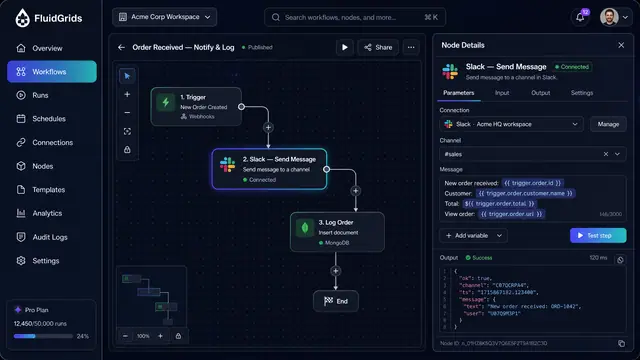
Node Configuration, Data Mapping and Code
Configure a step against a saved connection, map fields between services by dragging lines, and drop into sandboxed code when needed.
3 illustrations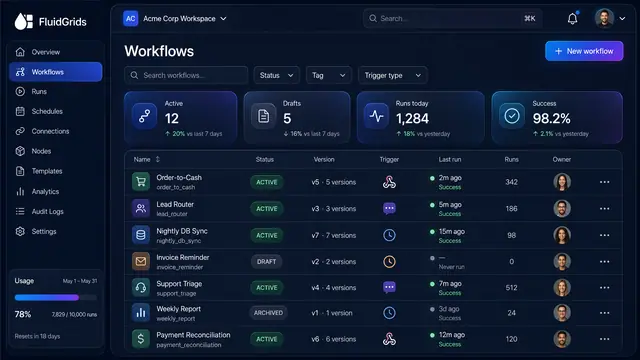
Workflow Library, Versions and Publishing
Track every workflow's status and version, compare and restore past versions, and publish with a pre-flight check that arms triggers.
3 illustrations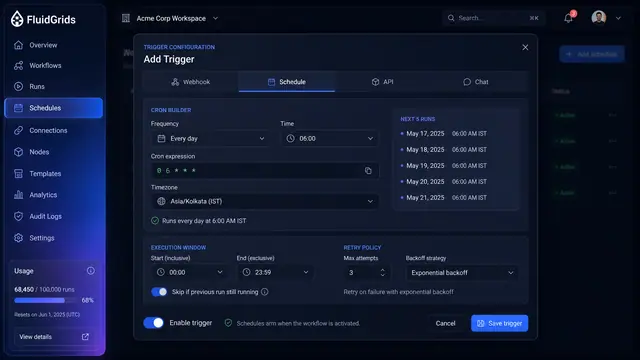
Triggers, Schedules and Webhooks
Decide what starts a workflow — a cron schedule, an incoming request, an API call or a chat message — and keep every trigger under control.
3 illustrations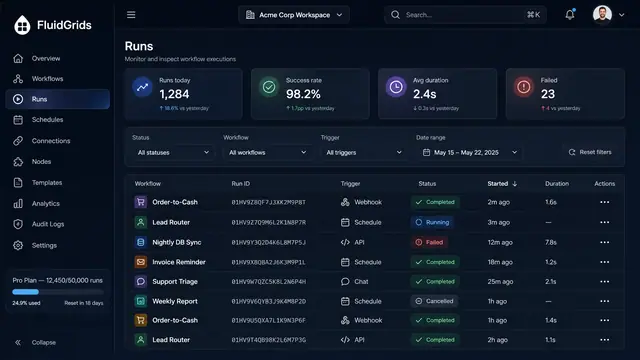
Run History, Inspection and Recovery
Follow every workflow execution node by node, then retry, resume or approve runs from a desktop or a phone.
5 illustrations
Part of industry solutions
This concept appears in cross-product solutions on burdenoff.com — see how it works alongside other Burdenoff products to solve a problem in that industry.

Industry solution
Pharma, Biotech & Life Sciences
Building the excursion response starts by choosing a Webhook trigger on the canvas; the steps that follow page the on-call technician, raise the work order and request the contents list.
See the solution(opens in a new tab)
Industry solution
Energy, Mining & Utilities
The canvas where the trip-to-downtime automation is drawn, starting from a webhook or API-call trigger when a trip is logged.
See the solution(opens in a new tab)
Industry solution
Construction & Engineering
Where the overnight workflow is built: a schedule trigger starts the run that copies RFI responses, submittal comments and minutes from PlanMagnet into the BotManor knowledge base.
See the solution(opens in a new tab)
Industry solution
Telecom & Network Operators
Where the outage runbook starts: choose the webhook trigger the trace calls, then add the steps that raise the work order, notify customers by SLA tier and publish the notice.
See the solution(opens in a new tab)