
Node Configuration, Data Mapping and Code
Configure a step against a saved connection, map fields between services by dragging lines, and drop into sandboxed code when needed.
These images are illustrations of the concept, not screenshots of the actual product.
Overview
Every automation eventually runs into the same three problems. A step needs credentials and settings. Two services describe the same customer with different field names. And somewhere in the middle there is a transformation no form will ever express. This concept covers all three without forcing a choice between a visual tool and a code editor.
The first screen shows node configuration. Selecting a step on the canvas opens a details panel with tabs for parameters, input, output and settings. The parameters tab starts with the connection the step will use - chosen from saved connections rather than pasted in - then the destination channel, then a message composer where values from earlier steps are inserted as template placeholders rather than typed by hand. A test-step action runs just that node, and the resulting response body appears directly beneath it with a success marker and a duration, so a step can be proven before the whole workflow is run.
The second screen is the field mapper. Two schema trees face each other - the output of one service on the left, the input of another on the right - with typed fields, expandable nested objects and search on both sides. Mappings are drawn as curved lines between them. For the cases where a value needs reshaping rather than copying, an expression editor sits below with a validity check and a plain-language note describing what the expression returns, alongside a path helper for picking values out of the source. A preview column resolves the mapping against sample input as it is edited, and an auto-map action proposes the obvious matches.
The third screen is the code step. A language choice between JavaScript and Python sits above an editor, a variables panel documents the bindings available to the script - the current JSON object, a named node's output, the item array and the current timestamp - and a run-once action executes the snippet and prints the returned records below it with an execution time. A footer states plainly that the sandbox blocks process, module loading and filesystem access.
The design intent across the three is a single escalation path: configure, map, and only then write code - with the same test-and-inspect loop at every level.
What this concept shows
- A node details panel with parameters, input, output and settings tabs opened from the selected node on the canvas
- A connection selector that reuses saved credentials, with a manage link instead of secrets in the step itself
- A message composer that inserts values from earlier steps as template placeholders, with a character counter
- A test-step action that runs one node and shows the response body, success state and duration in place
- Facing source and target schema trees with field types, expandable nested objects and search on both sides
- Drag-drawn mapping lines plus an expression editor with a validity check and a path helper for the source data
- A live mapping preview that resolves the mapped output against sample input, with an auto-map shortcut
- A sandboxed code step in JavaScript or Python with documented variable bindings and a run-once output panel
How it works
These steps illustrate how the concept fits together — not a walkthrough of the product's current interface.
- Select a node on the canvas to open its details panel and choose the saved connection it should use.
- Fill in the step parameters and compose its payload, inserting values from earlier steps as placeholders.
- Run the step on its own and read the returned response to confirm the configuration before moving on.
- Open the mapper between two services and draw lines from source fields to target fields, auto-mapping the obvious ones.
- Write an expression for any value that needs reshaping and check the resolved preview against sample input.
- Drop into a code step for logic the forms cannot express, using the documented bindings for input data.
- Run the code once, inspect the returned records, and wire the step back into the flow.
Who it's for
- Automation builders configuring connector steps day to day
- Integration engineers reconciling field names between systems
- Developers who need an escape hatch for custom transformations
- Data teams shaping payloads before they land in a warehouse or dashboard
Illustrations
3 illustrations of this concept. Select one to view it full size.
Node Details and Step Test
This illustration shows the node details panel open beside a small canvas whose header marks the workflow as published, with run and share actions. The canvas holds a four-step graph: a trigger fired by a new order, a selected messaging step marked as connected, a step inserting a document into a database, and an end marker, with inline add buttons between nodes and a minimap below. The panel names the selected step and its service, shows a connected badge, and offers tabs for parameters, input, output and settings. Under parameters sit a connection selector naming a saved workspace account with a manage link, a channel picker, and a message composer where an order reference, customer name, total and link are inserted as template placeholders, with a character counter and an add-variable control. A test-step button sits alongside, and the output section below shows a success state, a duration and the returned response body, with a copyable node identifier at the foot. All values are sample data.
Visual Field Mapper
This illustration shows a mapping dialog opened inside a draft workflow that moves payment data into a CRM. Three columns fill the dialog. On the left, the source schema tree lists the payment output with typed fields - strings, numbers and expandable objects including a nested customer and a metadata object holding an order reference - above a field search and filter. Curved lines connect selected source fields to the target column, and a toggle between the two switches from the visual view to a code view. The target column lists the contact-creation input fields with their own type chips and drag handles. On the right, a mapping preview shows the resolved output as JSON with a live indicator and a sample-input selector. Below, an expression editor holds a formula with a validity check and a plain-language note about what it returns, next to a path helper for picking a value from the source. Footer actions offer auto-map, add mapping, cancel and save. Values are sample data.
Sandboxed Code Step
This illustration shows a code step open over its workflow. The left canvas holds a three-node graph - a webhook, the selected code step, and a database insert, with the webhook and insert steps each showing an item count - plus zoom controls and a sidebar meter of executions used against an allowance with a reset countdown. The panel names the step and offers JavaScript and Python tabs, an expand control and a run-once action. A variables list documents the bindings available to the script: the current JSON object, the output of a named upstream node, the array of input items and the current date and time, each with a short description. The editor shows a short numbered snippet mapping input items into a smaller shape and deriving a tier from an amount threshold. Below, an output panel prints the returned records with an execution time and a copy control, and a footer notes that process, module loading and filesystem access are blocked. Values are sample data.
Topics
- node configuration panel
- visual data mapping between apps
- field mapping tool
- JSONPath expression helper
- workflow expression editor
- sandboxed code node
- JavaScript and Python automation step
- test a single workflow step
- template variables in automation
- connector credential selector
- auto-map schema fields
Related concepts
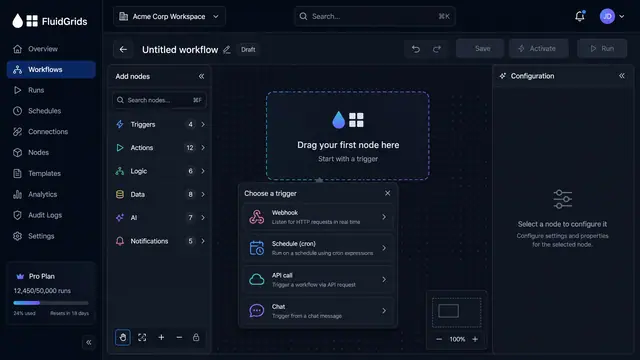
Visual Workflow Builder
Draw an automation on a canvas - trigger, branches, connectors and merges - then watch a test run light the same picture up step by step.
4 illustrations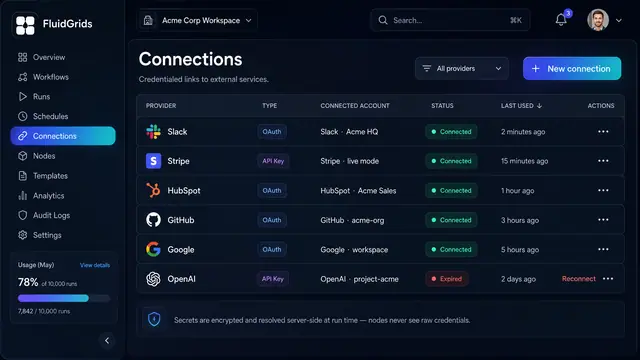
Connections and Credentials
Authorize external services once, reuse them across every workflow, and keep the secrets out of the canvas.
2 illustrations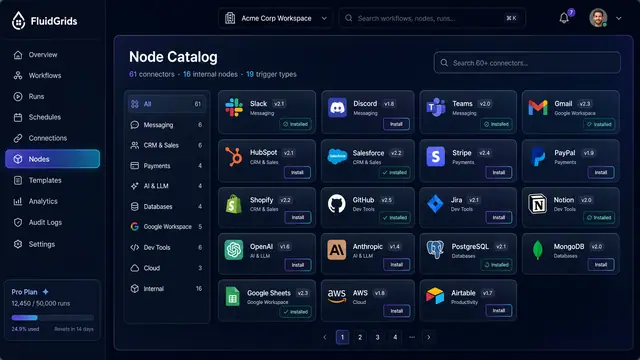
Node Catalog, Store and Custom Nodes
Browse versioned connectors, install packages and templates from a store, and publish your own nodes through a checked pipeline.
3 illustrations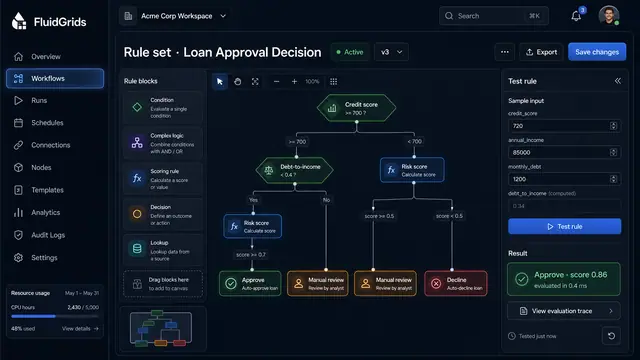
Visual Decision Rules
Build a process's decision logic as a versioned tree of conditions, scores and outcomes, and test it against sample inputs.
1 illustration