Comments and Notifications
Discuss a workflow on the node it concerns, mention teammates, and follow runs, quota and mentions from one notifications center.
These images are illustrations of the concept, not screenshots of the actual product.
Overview
Automations are team property: one person builds a workflow, another reviews it, and someone else is the first to hear when it fails. This concept keeps that conversation attached to the work itself, with comments pinned to individual nodes on the FluidGrids canvas, and gathers everything that needs attention into a single notifications center.
The problem it addresses is scattered context. Review feedback on automations usually happens in chat threads that lose track of which step is being discussed, and alerts about failed runs, quota limits and mentions arrive through different channels with no clear path back to the cause. The design brings both conversations and alerts into the workspace, next to the workflows they describe.
The first illustration shows a sample Order-to-Cash workflow open on the canvas, with teammates' avatars and an online count in the top bar. A comment badge and an avatar pin sit on the payment invoice node, and a popover shows the thread with React and Resolve actions. A Comments panel filters threads by All, Open and Resolved and shows replies, emoji reactions and an approval-for-activation note, while typing @ in the composer opens a picker of workspace members. The second illustration shows the Notifications page, with tabs for All, Alerts, Runs, System and Mentions. Most entries, from a failed run to a quota warning or a mention, carry a direct action, and a settings card chooses which channels deliver alerts.
Within the wider product, comments sit naturally beside versioning and publishing, since a reviewer can record an approval in the thread before a workflow is activated. Notifications link straight into runs, workflows, templates and connections, so an alert becomes the shortest path to the fix rather than one more message to chase.
What this concept shows
- Comment threads anchored to a specific node, with a count badge on the node itself
- Threaded replies, emoji reactions and a Resolve action on each thread
- A Comments side panel with All, Open and Resolved filters
- @mention autocomplete of workspace members in the comment composer
- A presence indicator showing which teammates are online
- A notifications center with All, Alerts, Runs, System and Mentions tabs and Mark all read
- A direct action on most alerts, such as viewing the run, upgrading, or opening the comment, workflow, template or connection
- Delivery settings that toggle in-app, email, Slack and webhook notifications
How it works
These steps illustrate how the concept fits together — not a walkthrough of the product's current interface.
- Open a workflow on the canvas and select the node you want to discuss.
- Leave a comment on that node and @mention the teammate who should respond.
- Collaborators reply in the thread, react or record an approval, then resolve the thread once it is addressed.
- The mentioned teammate sees the mention in the bell dropdown and on the Notifications page, alongside run failures and quota warnings.
- Filter notifications by type and follow an action link straight to the run, comment or workflow.
- Adjust notification settings to choose which channels deliver alerts.
Who it's for
- Automation builders and reviewers
- Operations teams on call for workflow failures
- Team leads who approve workflows for activation
- Workspace administrators
Illustrations
2 illustrations of this concept. Select one to view it full size.
Node-Anchored Comments on the Canvas
The illustration shows a sample Order-to-Cash workflow, version 5 and marked Active, open on the FluidGrids canvas with Test Run, code view, Share and Save controls. The graph runs from a new-order trigger through order validation, a Stripe invoice step, a SendGrid email and a Postgres order update, with a failure branch leading to an error handler and a Slack alert for the operations team. The invoice node carries a comment badge and a collaborator's avatar pin, and a popover shows the opening comment with React and Resolve buttons. The Comments panel on the right has All, Open and Resolved filters with counts, a threaded exchange about adding a retry, an approval-for-activation note and a reminder to map tax fields. At the bottom, typing @ in the composer opens a picker of workspace members. The top bar shows avatars of the teammates currently online.
Notifications Center and Delivery Settings
This illustration shows the Notifications page with All, Alerts, Runs, System and Mentions tabs and a Mark all read link. Each row pairs a status icon, a title, a detail line, a relative time and an action link: a failed run that names the step where it stopped, with View run; a quota warning at eighty percent of the monthly run allowance, with Upgrade; an @mention asking for a review, with View comment; a template update; a workflow activation for a new version; a scheduled maintenance notice; and a newly established connection. Unread items carry a dot, and the list ends with an all-caught-up message. On the right, the bell opens a compact dropdown of the latest items with View all notifications, above a Notification settings card that toggles in-app, email, Slack and webhook delivery. Names and figures are sample data.
Topics
- workflow comments
- comments on workflow nodes
- @mentions in a workflow builder
- collaborative workflow review
- workflow failure alerts
- notifications center
- run failed notification
- automation quota alerts
- Slack notifications for workflows
- team collaboration on automations
Related concepts
Workflow Library, Versions and Publishing
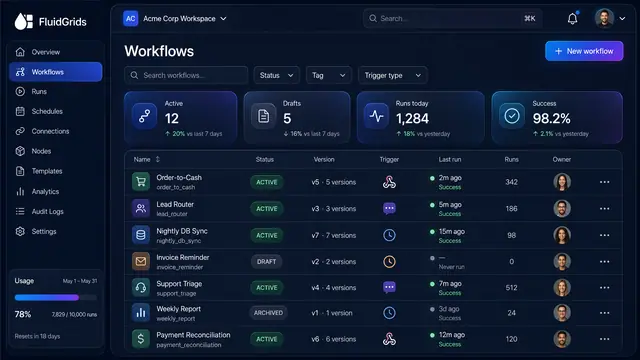
Track every workflow's status and version, compare and restore past versions, and publish with a pre-flight check that arms triggers.
3 illustrations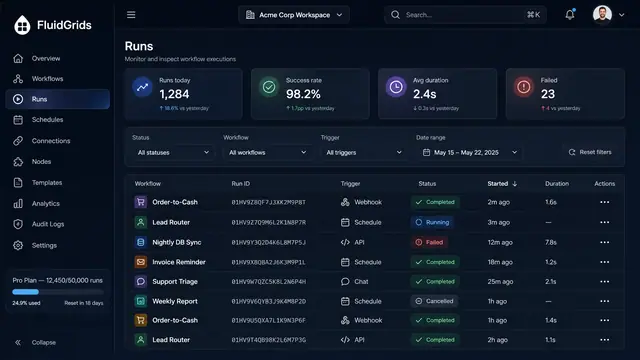
Run History, Inspection and Recovery
Follow every workflow execution node by node, then retry, resume or approve runs from a desktop or a phone.
5 illustrations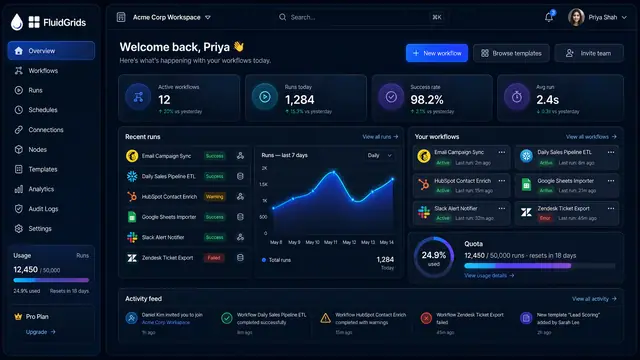
Workspace Home and Command Search
A live home view of workflow health, recent runs and quota, paired with a keyboard-driven search that reaches every object in the workspace.
2 illustrations
Visual Workflow Builder
Draw an automation on a canvas - trigger, branches, connectors and merges - then watch a test run light the same picture up step by step.
4 illustrations